Managing your reserves / holds
Placing a reserve / hold
| Reservations or holds can be placed on any physical item that can be lent out. The catalogue will show if items are present by displaying a reserve button on the right hand corner of the screen. Immediately under the button the number of copies held and any other reserves on this item/s are displayed. The example shown below is for a book with one item attached and no current reserves or hold requests attached to it. | 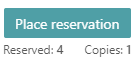 |
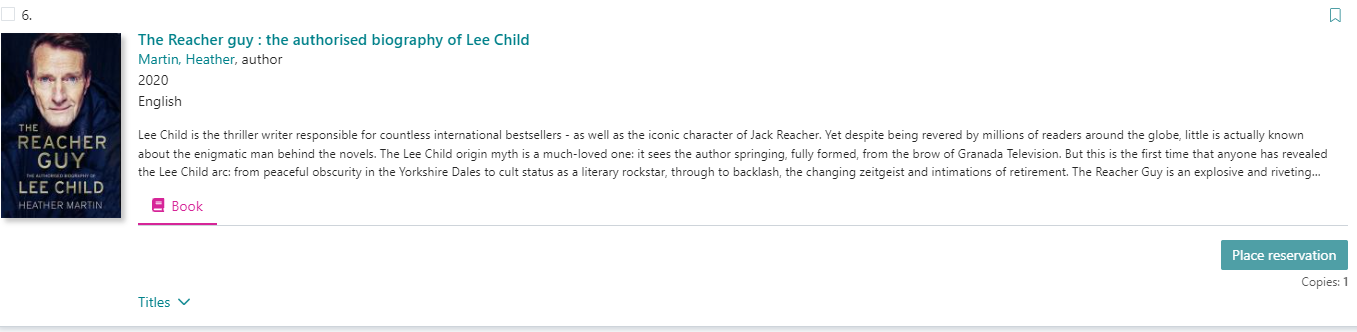
Titles can appear in multiple formats in a single catalogue entry. These appear grouped together in the items format see the example screenshot below.
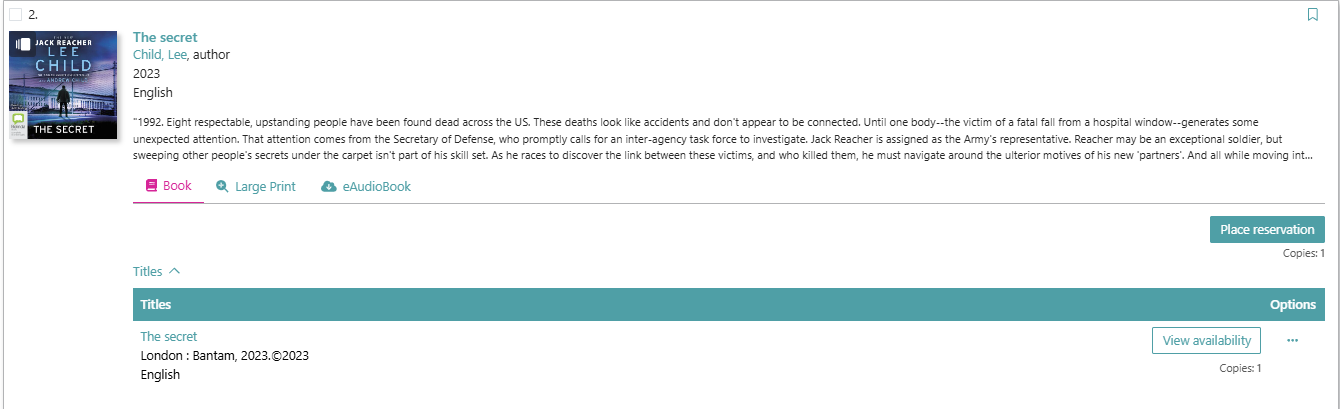
When clicking on the reserve button the system initially checks to see if you have logged in. If you have not logged onto your account you will be asked to do so. Once logged in you will see a screen like the one below-
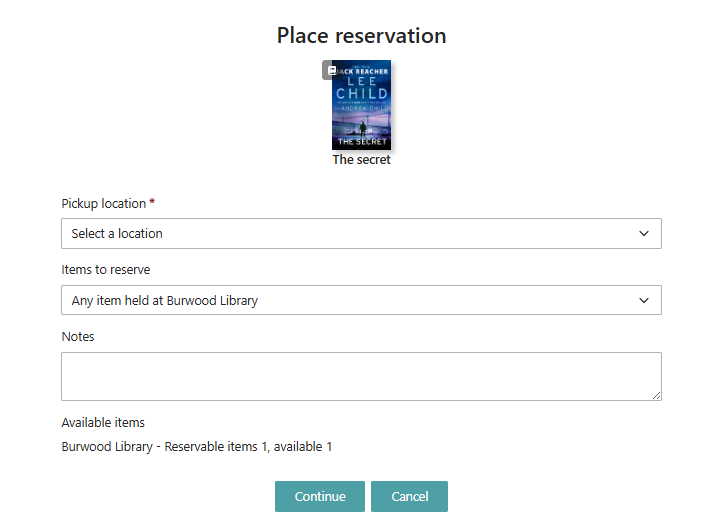 | This screen shot (left) offers the patron the option to select the items to reserve. You will get an option to choose your Pick up Location. You can choose Burwood Library or Unity Place.Next select the Items to reserve. It is most important to change this option to an item that you want to borrow. If the default is left then the system allocates the reserve to the first available item. This item is likely to be a an electronic resource - such as an eBook. There are two options that you can chose from this menu. One is the collection option - so for this example chose "any item held by Burwood Library". This will result in the correct type of item to be put aside for you from the Adult Fiction collection and not any of the electronic versions. |
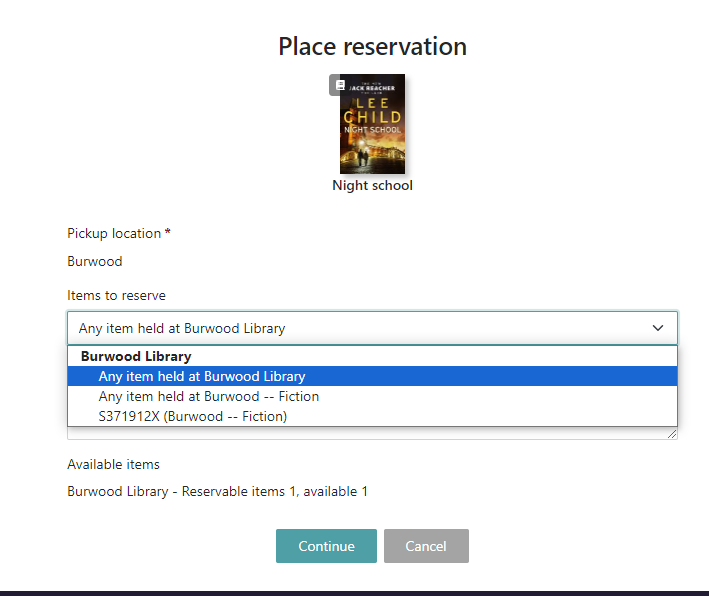 | The second option is to chose the actual item from the list. In the same example chose "S371912X (Burwood -- Fiction)." This has the same effect as the above option as there is only one physical item held in the collection. Once you have completed your selection then click on the "continue" button to finalize the reserve. If you make an error in your reserve / hold placement please visit My account and go to the dashboard and cancel your reserve. Reserve the item again from a new search. |
Cancelling reservations and requests
This facility allows you to cancel your current reservations if they are no longer required.
To cancel reservations:
- Login to My account and access the dashboard.
- Select the tile to display your current reservations or bookings.
- If you want to cancel individual reservations or bookings select by ticking the checkbox for each one you would like to cancel then click Cancel Selections, under the Options menu.
- If you want to cancel all your current reservations or bookings, click Cancel All.
Now please wait while the system processes your selections. Your list of reservations or bookings will be returned showing the result for each cancellation in the status column. To cancel a request:
- Login to My account and access the dashboard.
- Select the tile to display your current requests.
- Select the icon to the right of the request and click Cancel Request.